DOM navigation
Home Assistant makes extensive use of concept called shadow DOM. This allows for easy reuse of components (such as <ha-card> or <ha-icon>) but requires some advanced techniques when applying CSS styles to elements.
When exploring cards in your browsers element inspector, you may have come across a line that says something like #shadow-root (open) (exactly what it says depends on your browser) and have noticed that elements inside that does not inherit the styles from outside.
In order to style elements inside a #shadow-root, you will need to make your style: a dictionary rather than a string.
For each dictionary entry the key will be used to select one or several elements through a modified querySelector() function. The value of the entry will then be injected into those elements.
Tip
The modified querySelector() function will replace a dollar sign $ with a #shadow-root in the selector.
The process is recursive, so the value may also be a dictionary. A key of . (a period) will select the current element.
Example
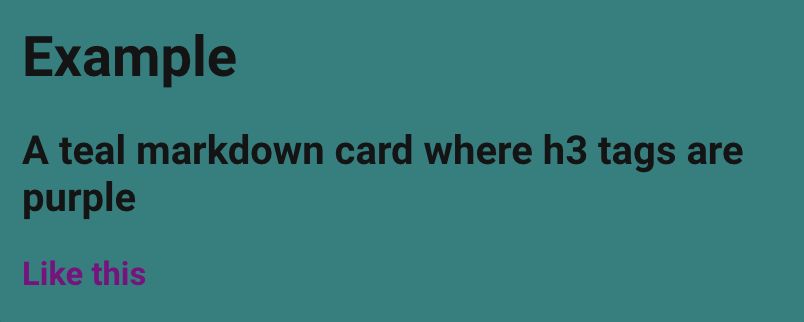
Let's change the color of all third level titles ### like this in a markdown card, and also change the card's background.
type: markdown
content: |-
    # Example
    ## A teal markdown card where h3 tags are purple
    ### Like this
In the element inspector of chrome, the HTML will be similar to the image below.
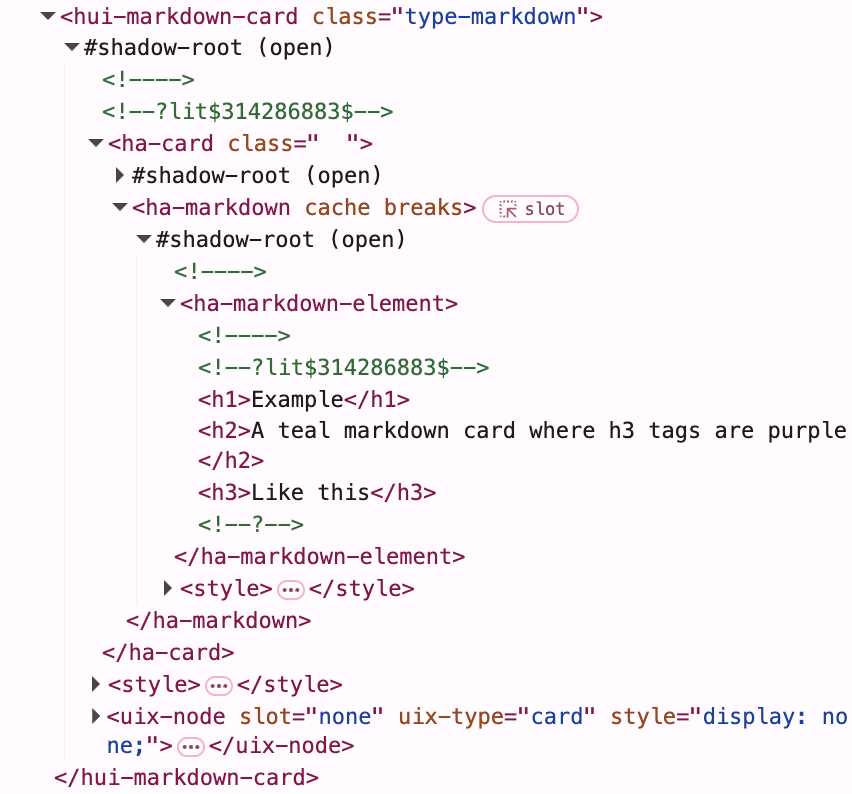
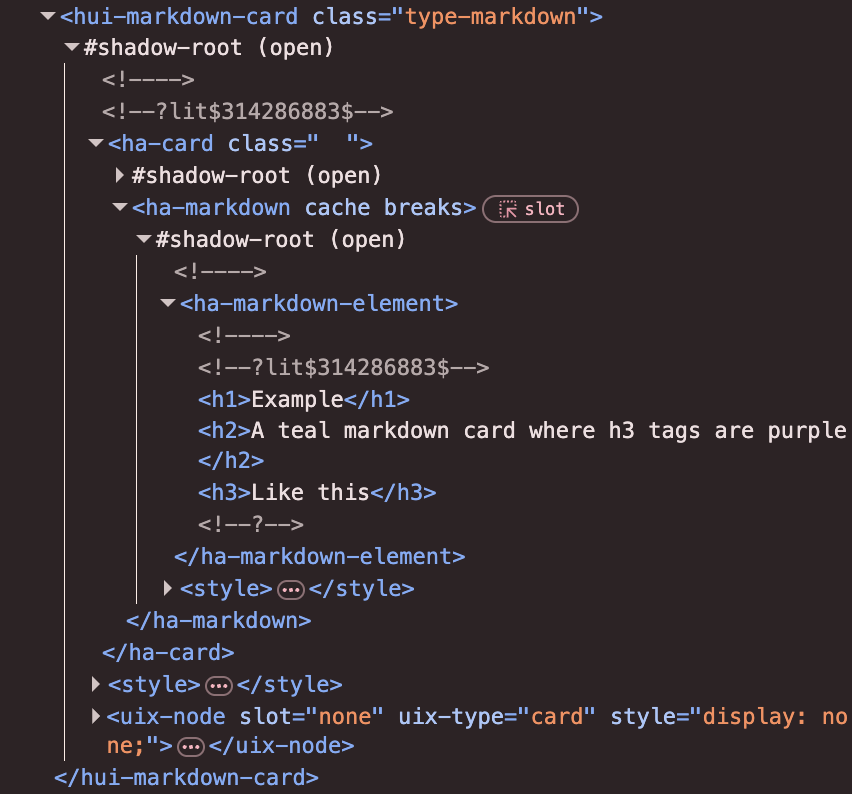
The <ha-card> element is the base, and from there we see that we need to go through one #shadow-root to reach the <h3>. That #shadow-root is inside an <ha-markdown> element, so our selector will be:
ha-markdown $:
<ha-markdown> element and then all #shadow-roots inside that.
To add the background to the <ha-card>, we want to apply the styles to the base element directly, which has the key
.:
This gives the final style:
uix:
  style:
    ha-markdown$: |
      h3 {
        color: purple;
      }
    .: |
      ha-card {
        background: teal;
      }
The selector chain of the queue will look for one element at a time separated by spaces or $. For each step, only the first match will be selected. But for the final selector of the chain (i.e. in a given dictionary key) all matching elements will be selected.
Chains ending with $ is a special case for convenience, selecting the shadow roots of all elements.
Chaining example
The following will select the div elements in the first marker on a map card:
ha-map $ ha-entity-marker $ div: |
ha-entity-marker $ selector and start a new search within each result for div):
  ha-map $ ha-entity-marker $:
    div: |
Load order optimization
Following on the note above, due to the high level of load order optimization used in Home Assistant, it is not guaranteed that the ha-entity-marker elements exist at the time when UIX is looking for them.
If you break the chain once more:
  ha-map $:
    ha-entity-marker $:
      div: |
ha-map $ point at a later time, which may lead to more stable results.
In short, if things seem to be working intermittently, then try splitting up the chain into several steps.
Host/element path selection
A path may begin with a & host/element as its first step. It filters the initial element where UIX is applied before any traversal takes place:
- If the initial element where UIX is applied is a ShadowRoot the filter is tested against the shadow root host element.
- If the initial element where UIX is applied is a regular Element the filter is tested against the element.
Generally you would use the host/element path selector in a theme to allow apply a selector path when the host/element has a specific class and/or id/attribute.
Matching is done by directly inspecting the parent/host properties — not via CSS selector engine — as required since the host/element itself is being filtered. The following tokens are supported (all present tokens must match):
| Token | Checks |
|---|---|
tagname |
element.localName === 'tagname' |
.classname |
element.classList.contains('classname') |
#id |
element.id === 'id' |
[attr] |
element.hasAttribute('attr') |
[attr=val] |
exact value match |
[attr^=val] |
value starts with |
[attr$=val] |
value ends with |
[attr*=val] |
value contains |
[attr~=val] |
whitespace-separated word match |
[attr\|=val] |
value equals or is a --prefixed sub-tag |
Tokens may be combined — e.g. &ha-dialog.my-class[data-type="video"] — and all must match. Selectors containing spaces are not supported because the path is split on spaces.
Class-based selectors may optionally be wrapped in parentheses for readability: &(.my-class) is equivalent to &.my-class.
Example styling dialog
Style the content of a dialog only when it is of type type-hui-dialog-web-browser-play-media:
uix-dialog-yaml: |
  "&(.type-hui-dialog-web-browser-play-media) $ ha-dialog-header $": |
  section.header-content {
    display: none;
  }
&(.type-...) step filters the initial nodes by checking whether the host element carries that class, then $ crosses the shadow root.
Example styling badge
Style the energy dashboard power total badge border which has class .type-power-total. The border can only be styled in shadow root so using & host/element selector we can target only badges which have class .type-power-total while still crossing shadow root.
uix-badge-yaml: |
  .: |
    :host(.type-power-total) {
      --ha-card-border-width: 3px;
      --ha-card-border-color: red;
    }
  "&.type-power-total ha-badge $": |
    .badge {
      border-style: double !important;
    }
DOM inspection helpers
UIX ships three browser console helpers that make it easier to discover valid style paths, forge spark paths, and understand the UIX element hierarchy at runtime. Open your browser's DevTools console, select an element in the Elements panel (it becomes $0), then call one of the functions below.
uix_tree($0) — general helper
Reports everything UIX knows about the area surrounding the selected element:
| Section | What it shows |
|---|---|
| 📦 Closest UIX Parent | The nearest ancestor element that has a non-child uix-node attached, with UIX template variables (usually config) and its UIX type (e.g. card, view). |
| 👶 Active UIX Children | Paths that are currently being styled as children of the UIX parent, with the resolved DOM elements shown. |
| 🗺️ Available YAML Selectors | Every YAML style key reachable within the UIX parent's shadow DOM subtree (stopping at the next UIX parent boundary). Each key maps to one shadow context; inside you'll find the CSS selectors valid for that key's style string. |
uix_tree($0)
Example
After selecting a card element in the inspector and running uix_tree($0), the console output might look like:
💡 UIX Tree 💡
  Target element: <hui-card>
  📦 Closest UIX Parent
    Element: <hui-card>
    UIX type: card
  👶 Active UIX Children: none
  🗺️ Available YAML Selectors  (2 YAML selectors, 5 CSS selectors)
    ".":  (2 CSS selectors)
      ha-card  <ha-card>
      ha-card ha-markdown  <ha-markdown>
    "ha-markdown $":  (3 CSS selectors)
      h3  <h3>
      p  <p>
      p span  <span>
Each group label shows a YAML style key followed by the required : syntax. The CSS selectors inside are valid within that key's style string. Each selector is followed by a clickable element reference — click it to jump straight to that element in the DevTools inspector.
uix_style_path($0) — specific helper
Reports the exact UIX path to the selected element and generates a ready-to-paste YAML snippet:
| Section | What it shows |
|---|---|
| 📦 Closest UIX Parent | Same as uix_tree. |
| 📍 UIX Path to Target | The exact path string (using $ for shadow-root crossings) from the UIX parent context to $0. Use this as the key in a UIX style: config. |
| 🎨 CSS Target | Tag name, id, classes and a suggested CSS selector for the element — each followed by a clickable element reference to jump straight to it in the DevTools inspector. |
| 📝 Boilerplate UIX YAML | A paste-ready card-level YAML snippet to get you started. Shown only for types that can be styled via a card-level uix: key. |
| 📝 Boilerplate Theme YAML | A paste-ready theme YAML snippet. Shown for all types — for theme-only types (e.g. dialog, sidebar, view) this is the only boilerplate shown. When shadow-root crossings are needed, the -yaml variant of the theme variable is used. |
uix_style_path($0)
uix_path($0) is a shorthand alias for uix_style_path($0).
Example
After selecting the <h3> heading inside a markdown card and running uix_style_path($0):
💡 UIX Style Path 💡
  Target element: <h3>
  📦 Closest UIX Parent
    Element: <hui-markdown-card>
    UIX type: card
  📍 UIX Path to Target
    Path: "ha-markdown $":
  🎨 CSS Target
    Tag: h3
    Suggested CSS selector: h3  <h3>
  📝 Boilerplate UIX YAML
    uix:
      style:
        "ha-markdown $": |
          h3 {
            /* your styles for h3 */
          }
  📝 Boilerplate Theme YAML
    my-awesome-theme:
      uix-theme: my-awesome-theme
      uix-card-yaml: |
        "ha-markdown $": |
          h3 {
            /* your styles for h3 */
          }
The Path line shows the YAML key including the required :. The Suggested CSS selector is followed by a clickable element reference that jumps to the element in DevTools.
uix_forge_path($0) — forge helper
Reports the path from the closest uix-forge forge to the selected element. Use the reported path as the value of for, before, or after in a forge spark config.
| Section | What it shows |
|---|---|
| 📦 Closest UIX Forge Parent | The nearest ancestor uix-forge element. |
| 📍 Forge Path to Target | The selector path (using $ for shadow-root crossings) from the forged element to $0. |
| 📝 Boilerplate Spark YAML | A paste-ready spark YAML snippet showing how to use the path. |
uix_forge_path($0)
Warning
If you are adding a spark element of the same type, e.g. a tile icon before ha-tile-icon then pay particular attention to the documentation for that spark which will provide guidance on path specificity so as to not select the spark element itself during updates.
Example
After selecting ha-tile-icon in a tile card and running uix_forge_path($0)
📦 Closest UIX Forge Parent
Element: <uix-forge class="type-custom-uix-forge">…</uix-forge>
📍 Forge Path to Target
Path: "hui-tile-card $ ha-card ha-tile-container ha-tile-icon"
Use this path as the value of `for`, `before`, or `after` in a spark config.
📝 Boilerplate Spark YAML
forge:
sparks:
- type: tooltip
for: "hui-tile-card $ ha-card ha-tile-container ha-tile-icon"
content: "..."
# for tile-icon / state-badge sparks:
# - type: tile-icon
# before: "hui-tile-card $ ha-card ha-tile-container ha-tile-icon"
# icon: mdi:home