Quick Start
Card-mod users
If you are migrating from Card-mod check out the FAQ where most of your questions will be answered. If you need to ask anything further, use the GitHub discussions.
Download
HACS

Install UI eXtension via HACS. You can do this easily in a few steps by clicking the button above.
Download when viewing UI eXtension via HACS
If you are new to using HACS you may miss the step to actually Download the integration. Look for the Download button or choose from the ... menu.
Manual
Use your favorite method of accessing Home Assistant configuration files. Add uix folder to custom_components. Copy all files in custom_components/uix to the uix folder.
Add UI eXtension service

Once the integration is downloaded and available in Home Assistant, you need to add the UI eXtension service to Home Assistant. This is done in the Devices & services section of Settings page in Home Assistant. You can do this easily in a few steps by clicking the button above.
Once the UI eXtension service has been added, refresh the page to make the Frontend resource available.
Can't find UIX?
If you can't find UIX make sure that you have restarted Home Assistant after installing the integration via HACS or manually. If you installed via HACS you will have a repair notification waiting which you can use to restart Home Assistant.
Your First UIX Styling
- Open your card in the Home Assistant GUI editor
- Click the
Show code editorbutton at the bottom of the edit dialog - Add the following to the bottom of yaml code:
type: tile
entity: light.bed_light
uix:
  style: |
    ha-card {
      background: red;
    }
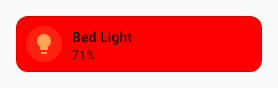
You should see the background of the card turn red as you type. You should also see a little brush icon popping up near the Show visual editor button. This indicates that this card has UIX code which will not be shown in the visual editor.
Your first UIX Forge
Use the following YAML, adjusting for your entity, to forge a tile that will be hidden when input_boolean.test_boolean is on. Other forge and element options, while templates, do nothing more than set non-template values. This is to show that all element config and hidden and grid_options forge config may be templated (as well as sparks).
type: custom:uix-forge
forge:
  mold: card
  show_error: false
  hidden: "{{ is_state('input_boolean.test_boolean', 'on') }}"
  grid_options:
    columns: "{{ 6 }}"
    rows: 1
element:
  type: tile
  icon: "{{ 'mdi:test-tube' }}"
  entity: "{{ 'sun.sun' }}"
  uix:
    style: |
      ha-card {
        background: red;
      }
