Styling custom panels
UIX styles custom panels not loaded by iframe directly. UIX can also style custom panels loaded as iframe. Currently this is an experimental feature which you need to enable. See Extras - Styling frame panels.
Custom panel loaded by iframe - How it works
- Custom panels loaded as iframe are styled by the internal UIX frame runtime injected by the
ha-panel-custompatch. The runtime is shared with app frames and is agnostic about which panel type invoked it. - If UIX detects a theme is not applied, UIX Styling is applied with the currently loaded Home Assistant Frontend theme. Some custom panels like HACS apply the theme, and in this case UIX styling will inherit the applied theme.
- Home Assistant custom panels are set by config that includes
name:. UIX Styling uses thisnameto create the UIX theme variable for styling custom panels loaded by iframe.
Examples
Styling custom panels loaded directly
Use the direct custom theme variable uix-panel-custom(-yaml).
Example styling Browser Mod panel specifically:
UIX Test:

  uix-theme: UIX Test

  uix-panel-custom-yaml: |
    browser-mod-browser-panel $: |
      browser-mod-browser-settings-card {
        --card-background-color: red;
        --primary-text-color: white;
        --secondary-text-color: whitesmoke;
        --ha-color-form-background: darkorange;
      }
Example styling all directly loaded custom panels:
UIX Test:

  uix-theme: UIX Test

  uix-panel-custom: |
    ha-panel-custom > * {
      --card-background-color: red;
      --primary-text-color: white;
      --secondary-text-color: whitesmoke;
      --ha-color-form-background: darkorange;
    }
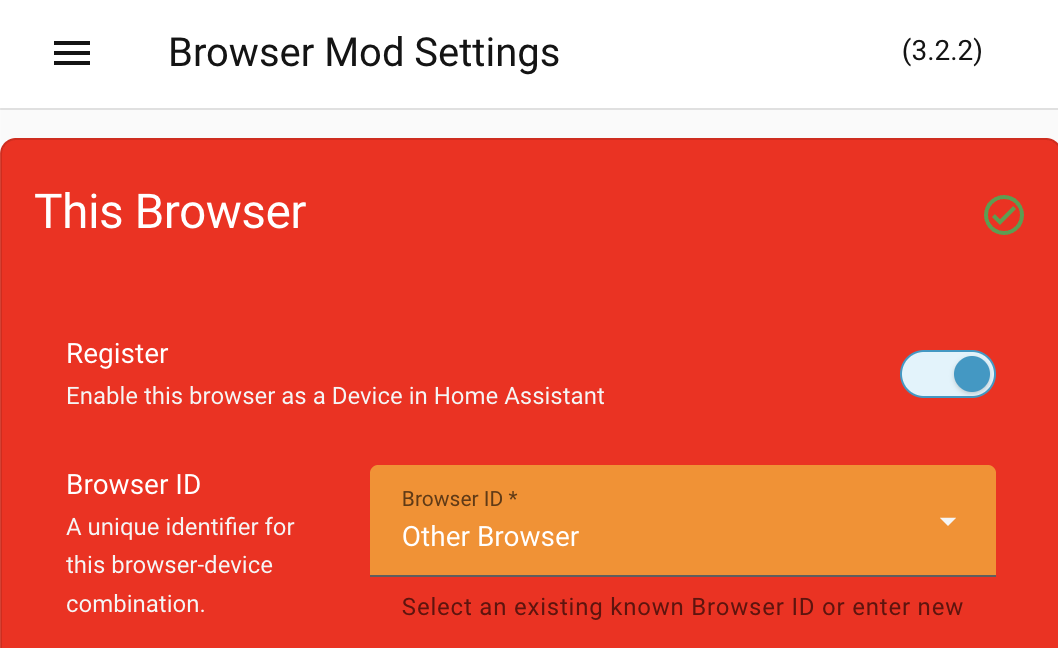
The result for both of the above is the same when the Browser Mod browser panel is viewed.
Browser Mod browser panel styling
Info
Custom panels DOM structure may not use shadowRoots or Home Assistant elements so you will need to inspect the custom panel to understand what you can theme.
Styling custom panels loaded by iframe
Use the theme variable uix-<name>(-yaml) where name is the custom panel name. If you are not sure of the custom panel name, use a desktop Browser's inspector tools to see what the first element is in the DOM of the iframe. The element's tag is the custom panel name.
Example styling of HACS custom panel loaded by iframe:
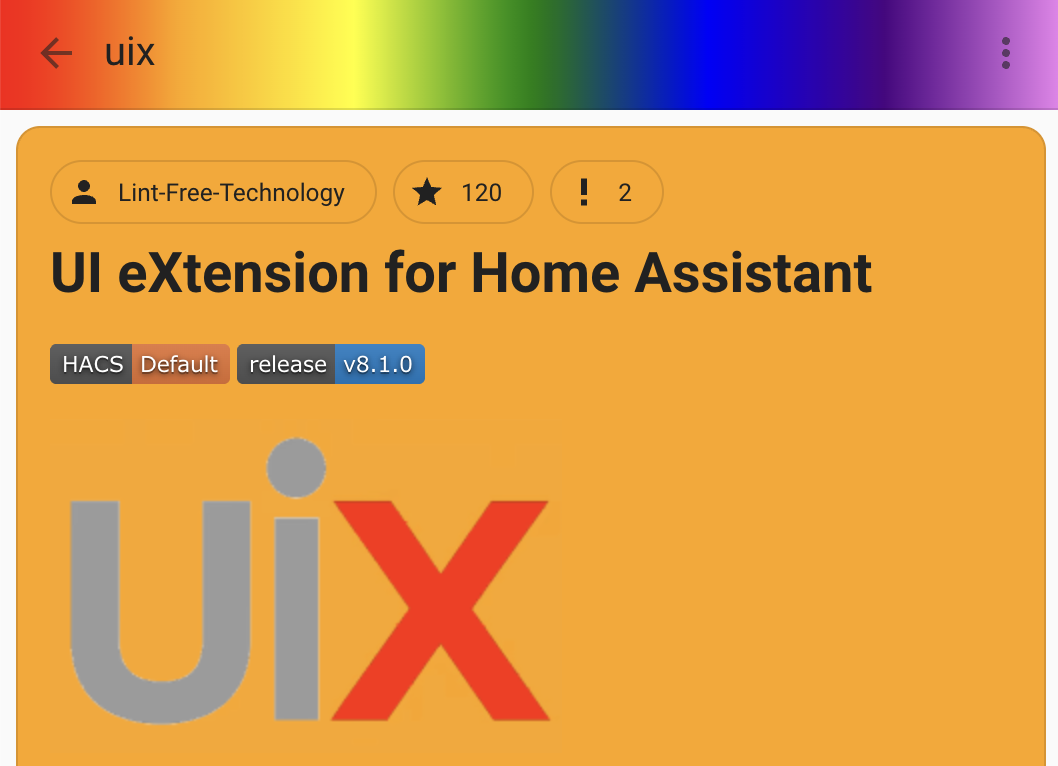
For HACS, the custom panel name is hacs-frontend so the UIX Styling theme variable is uix-hacs-frontend(-yaml). The theme below styles the toolbar of the HACS custom panel to a rainbow effect, and sets some card styling variables.
UIX Test:

  uix-theme: UIX Test

  uix-hacs-frontend-yaml: |
    hacs-dashboard $ hass-tabs-subpage-data-table $ hass-tabs-subpage $: |
      .toolbar {
        background: linear-gradient(90deg, red, orange, yellow, green, blue, indigo, violet);
      }
    hacs-repository-dashboard $:
      .: |
        ha-card {
          background-color: orange;
        }
      hass-subpage $: |
        .toolbar {
          background: linear-gradient(90deg, red, orange, yellow, green, blue, indigo, violet);
        }
      hass-loading-screen $: |
        .toolbar {
          background: linear-gradient(90deg, red, orange, yellow, green, blue, indigo, violet);
        }
HACS panel styling
Theme updates
Theme updates to the currently selected theme for user will be applied while viewing the custom panel. However, if you change the theme for the user viewing the custom panel you will need to refresh the panel to have the new theme applied.